
PlayinMatch sign-in on mobile data
PlayinMatch Com Mobile Login — Top Jio and Airtel Fixes to Sign In
Switch the phone's Private DNS to dns.google, flick airplane mode on and off, then open a PlayinMatch mirror that actually loads and sign in with your usual username and password. Still spinning on Jio or Airtel? Move to Wi-Fi for one attempt. Your ID and wallet do not change between addresses.
Reliable PlayinMatch Com Mobile Login Card for Your Phone Browser
Got the page to open on Jio or Airtel? Good, the hard part is over. PlayinMatch on a phone takes the same two entries as on a laptop, and a handset it has never met before gets a one-time code on top.
What Does the PlayinMatch Com Mobile Login Screen Look Like? A Clear Tour of Each Tap
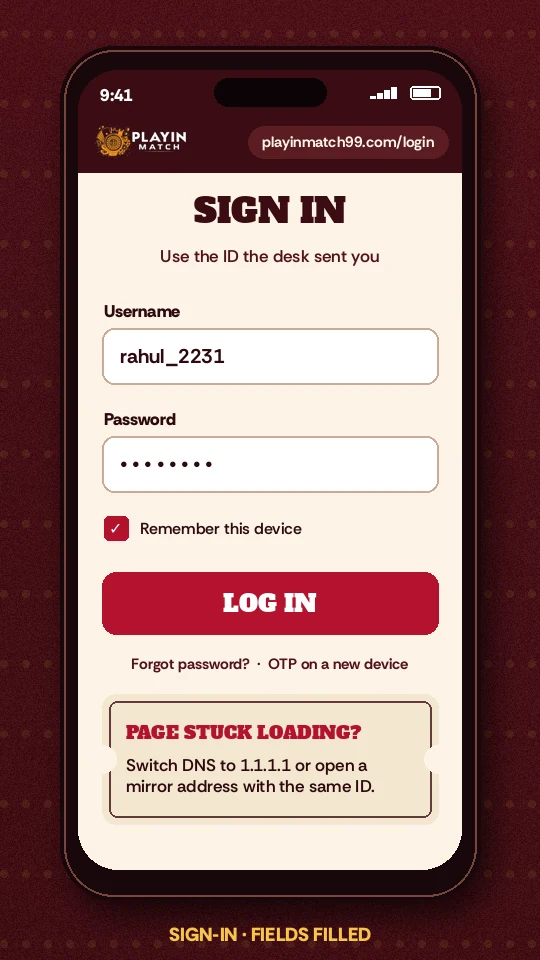
On a phone, this site gives you three ways into the same PlayinMatch sign-in form, and they all do the same job.
The first is the Login button in the header, right beside Sign Up. The second sits in the bar pinned to the bottom of the screen: Sign In Now, between Get an ID and the WhatsApp Desk shortcut. Thumbs reach that one faster, which is why most people on a 6-inch screen end up using it. The third is the card just above this section. Tap any of them and a small form slides over the page; you never leave the page you were reading.
The form itself is two boxes and a button. Username or phone number on top. Password below. Then the sign-in button, and under it a link for a forgotten password that opens the reset form in the same overlay. There is no separate "mobile version" of your PlayinMatch login with different credentials — people ask this a lot, so once more: the phone uses the exact username and password the account was created with.
If you arrived here without an account, the Get an ID button in that bottom bar opens sign-up instead, and the PlayinMatch joining steps cover what the desk asks for.
If the overlay form opens but the next screen never appears after you press sign in, the problem is almost always the network path to to the betting address and not your password. Skip ahead to the fixes rather than retyping the password five times.
Reliable PlayinMatch Com Mobile Login in Five Rows on Jio or Airtel
This is the order that wastes the least time. Each row fixes something the one after it depnds on, so doing them out of order tends to hide the real cause.
- Pick one data SIM. On a dual-SIM phone, check which card carries mobile data (Settings, then SIM cards or Mobile network). Note whether it is Jio, Airtel or Vi, because the next PlayinMatch fix behaves a little differently on each.
- Set Private DNS. Open Settings, go to Network (or Connections), tap Private DNS, choose the provider hostname option and type
dns.google. If that one refuses to connect, useone.one.one.oneinstead. Save. - Reset the connection. Turn airplane mode on, wait a few seconds, turn it off. The phone re-registers on the tower and drops whatever lookup it had been holding onto.
- Open a mirror that responds. Take the current address from the PlayinMatch com mobile address list and load it in Chrome or Safari. A clean page with the sign-in form is your green light.
- Sign in. Username or phone, then password. On a handset the account has not seen before, a one-time code is sent — type it in and you are through to the same PlayinMatch wallet you left on the other device.
Most people are done by row four. The DNS change does the heavy lifting, honestly; the airplane toggle is there because Android sometimes keeps using the old DNS answer for a while after you change the setting, and a toggle is faster than waiting.
Best Way to Keep PlayinMatch Com Mobile Login One Tap Away
Once a mirror loads, save yourself the hunt next time. In Chrome on Android, open the three-dot menu while the PlayinMatch address is on screen and choose Add to Home screen; on an iPhone, tap Share in Safari and pick Add to Home Screen. The icon then opens that exact address full-screen, much like an app would.
There is a catch, and it trips people up every few weeks. A shortcut points at one address forever. When that address gets blocked on your network, the icon will spin exactly like the old bookmark did, and it is easy to assume PlayinMatch itself is down. It isn't. Check the address list, load the new mirror, and replace the shortcut. Keep the Private DNS setting switched on in the meantime; it costs nothing on mobile data and it keeps most blocks from reaching you in the first place.
Let the browser save the password too, if the phone is yours alone. Autofill removes the most common typing mistake on a small keyboard (a capital letter the keyboard added on its own), though it also means an old password can sneak back in after a reset — see the errors table below for that one.
Shared or family phone? Skip the saved password, sign out when you finish, and let PlayinMatch send the code again next time. Slightly slower. Much safer.
Row five mentions the code on a new phone. Why PlayinMatch asks for it, and when document checks come in, sits on the PlayinMatch account safety page. We are not repeating the thresholds here.
PlayinMatch Not Working on Mobile Data? Top Fixes, Cheapest First
When PlayinMatch is not working on a phone but loads fine on a friend's laptop, the account is rarely the problem.
Think of your operator's DNS resolver as the phone's directory enquiry. You type the PlayinMatch address, Chrome asks Jio or Airtel where that name lives, and the answer comes back before a single byte of the sign-in page moves. When a government order lists a betting address, the operator simply stops giving a useful answer for it. Your PlayinMatch username, password and balance are sitting where they always were on the sportsbook's own servers; only the directory has gone quiet. Two ways around that: ask a different directory (Private DNS), or walk to a different door with the same room behind it (a mirror address).
So the fixes below go from free and instant to slightly more fiddly. Stop at the first one that works.
- Reload once with the address typed fresh, not from an old bookmark or a WhatsApp forward. Old links often point to an address that has since been retired.
- Toggle airplane mode. Cheap, silly, and it works more often than it should.
- Set Private DNS to dns.google, as in the rows above. This clears the large majority of Jio and Airtel cases.
- Clear the browser's stored data for the betting address (steps further down).
- Switch to Wi-Fi, or to the other SIM if you have one, for a single attempt.
- Open a different mirror from the current PlayinMatch mobile address page.
- If all six fail, the fault may for once be on the PlayinMatch end, and PlayinMatch customer care on WhatsApp or Telegram will know whether an address dropped tonight. Send your username plus the exact words of the error.
Proven Private DNS Steps for PlayinMatch Login on Android Phones
Android has had a system-wide Private DNS switch since version 9, but every maker hides it somewhere slightly different. The destination is always the same box asking for a hostname.
| Phone | Where Private DNS lives | What to type |
|---|---|---|
| Stock Android, Pixel, Motorola, Nokia | Settings › Network & internet › Private DNS | dns.google |
| Samsung Galaxy | Settings › Connections › More connection settings › Private DNS | dns.google |
| Xiaomi, Redmi, Poco | Settings › Connection & sharing › Private DNS | dns.google |
| OnePlus, Oppo, Realme, Vivo | Search “Private DNS” in the Settings search bar | one.one.one.one if dns.google fails |
Pick “Private DNS provider hostname”, type the name exactly, no https:// in front, and press Save. If the phone shows “Couldn't connect” under the setting, try the second hostname. One small catch: some office and college Wi-Fi networks block outside DNS, so on those networks the setting can break browsing entirely. Switch it back to Automatic when you are on that kind of Wi-Fi, then set it again for mobile data.
Clear Stored Site Data Before the Next PlayinMatch Login Attempt
Browsers remember failures. After a blocked lookup, Chrome can keep showing the same error even though the DNS path is now fixed. Clearing data for just the betting address is enough; you do not need to wipe your whole history.
- Chrome on Android: open the address, tap the icon to the left of it, choose Site settings, then Clear & reset. Reload.
- Samsung Internet: Settings › Personal browsing data › Delete browsing data, tick cached images and cookies only.
- Safari on iPhone: Settings › Safari › Advanced › Website Data, search the address, swipe to delete.
Clearing cookies signs you out, obviously. That is fine — the next PlayinMatch login from the same phone should go straight through, and it generally won't ask for a code again because the handset is already known to the account (hard to promise that in every case, though).
Best Wi-Fi Route for PlayinMatch Login on an iPhone
iPhones do not have the Android Private DNS switch, and there is no built-in way to change DNS for mobile data alone. What iOS does allow is a manual DNS per Wi-Fi network: Settings › Wi-Fi, tap the small info icon next to the network, Configure DNS, Manual, then add 8.8.8.8 and remove the rest. For PlayinMatch on an iPhone using Jio or Airtel data, the practical route is simpler: join any home Wi-Fi or a hotspot from another phone, sign in there once, then carry on. That is the theory, anyway. In practice some iPhone users find the mirror loads on data without any change at all, because their operator has not listed that address yet. Try it before fiddling.
Jio, Airtel and Vi Compared — Reliable PlayinMatch Com Mobile Login per Network
All three operators follow the same blocking orders. Where they differ is in timing and in how the block shows up on your screen, and that changes which PlayinMatch fix you should reach for first.
| Network | What you tend to see | First fix to try |
|---|---|---|
| Jio | Page spins, then a “site can't be reached” message, or an operator notice about a blocked website | Private DNS to dns.google, then airplane toggle |
| Airtel | Long load that times out; sometimes the page half-loads without styling | Private DNS, then clear site data in the browser |
| Vi | Often loads a mirror that Jio refuses; occasionally a plain error page | Try the mirror as-is before changing any setting |
Treat that table as a tendency, not a rule. Operators update their block lists on their own schedules, so an address that loads on Airtel on Monday may stop on Wednesday and come back on a different mirror by the weekend. Nobody outside the operators can predict it week to week.
Dual-SIM phones have a quiet advantage here. If Jio stalls on the PlayinMatch sign-in, switch the data SIM to Airtel or Vi for one attempt: the account session carries on after you switch back, since the login itself is tied to the account and not to the network you used.
A typical case: someone on Jio set Private DNS, saw the setting say connected, and still got the same spinning PlayinMatch page. The fix was the browser, not the network. Chrome had cached the failed lookup; clearing site data for that one address loaded the sign-in form on the next tap.
One more pattern shows up on all three networks. Sign-in works, the lobby opens, and then a live cricket market or a casino table refuses to load. That is usually a secondary address the page calls for games or odds, and it is covered by the same DNS change. If you set Private DNS before signing in, this rarely happens at all.
No Wi-Fi nearby and only one SIM? Borrow a hotspot. A friend's phone on a different operator can share its connection for the two miutes a sign-in takes, and after that your own data may well cope with the lobby once the address is resolved. It sounds like a workaround because it is one, but it gets people through a match evening more often than any setting.
Using Wi-Fi instead of Jio is completely fine, by the way. PlayinMatch does not care which network carries your sign-in, and many people keep one browser tab open on home broadband for the evening and use data only when they are out.
PlayinMatch Login Errors on Mobile — Clear Symptom, Cause and Fix Table
Read the error first. The wording on the screen usually tells you whether the trouble is the address, the browser, or the PlayinMatch account itself, and each one has a different fix.
| What the phone shows | Likely cause | Fix |
|---|---|---|
| Loading circle that never ends | Operator DNS not answering for the address | Private DNS to dns.google, airplane toggle, reload |
| “This site can't be reached” or DNS_PROBE_FINISHED_NXDOMAIN | Address blocked or retired | Open a current mirror from the address page |
| Operator notice saying the website is blocked | Block applied on that network | Change DNS, or switch to Wi-Fi or the other SIM |
| Page loads as plain text with no layout | Style files from a second address blocked | Private DNS, then clear site data |
| “Incorrect username or password” | Typo, autofill with an old password, or wrong username | Type it by hand; if unsure, use the reset link |
| One-time code never arrives | SMS delay, weak signal, or the number on the account differs | Wait a minute, request once more, then contact the desk |
| Signs in, then logs straight back out | Cookies blocked or an in-app browser | Open the address in Chrome or Safari directly |
That last row catches a lot of people. Links opened from inside WhatsApp, Telegram or Instagram load in the app's own mini-browser, which is tight about cookies and sometimes drops the PlayinMatch session the moment you move to another screen. Use the menu in that mini-browser to open the link in Chrome or Safari instead. Two seconds, problem gone.
About the code. If the one-time code refuses to show up, do not keep hammering the resend option; request it once more, check that the SIM with the registered number is in the phone and has signal, and then stop. The PlayinMatch care desk can confirm which number the account holds — a surprisingly common cause is an ID made with an older number. For the reason the code appears on every new handset in the first place, see how PlayinMatch protects the account.
Password trouble is the one category where the network is innocent. The reset form opens from the sign-in overlay, or from the card near the top of this page. After a reset, sign in on the phone first, before any other device, so the new password is the one your browser saves. If you would rather do this on a larger screen, the main PlayinMatch login page walks through the desktop side.
PlayinMatch Com Mobile Login Questions — Top Answers from the Desk
My phone opens PlayinMatch at home but not outside. What changed?
Only the network changed. At home the broadband resolver still answers for the PlayinMatch address; outside, the Jio or Airtel resolver has stopped answering for it. The account is identical in both places. Set Private DNS to dns.google before leaving the house, or keep a current mirror saved, and outside sign-ins work too.
What should I do if the PlayinMatch mobile login code does not arrive?
Request the code once more, then check that the SIM holding your registered number is in the phone with signal. SMS can lag on a weak network. If it still does not come, message PlayinMatch customer care with your username so they can confirm the number linked to the account.
How do I change DNS on Android so PlayinMatch loads?
Open Settings, go to Network or Connections, and tap Private DNS. Choose the provider hostname option, type dns.google, and save. If it says it cannot connect, use one.one.one.one instead. Toggle airplane mode off and on, then reload the PlayinMatch address in Chrome.
Why does the PlayinMatch login page keep loading on my phone?
An endless spinner almost always means the phone cannot resolve the address on your current network, not that your account has a problem. Change Private DNS, clear the browser data for that address, and reload. If PlayinMatch still spins, open a different mirror from the mobile address list.
Can I sign in to PlayinMatch on Wi-Fi instead of Jio data?
Yes. PlayinMatch does not tie your account to a network, so the same username and password work on Wi-Fi, Jio, Airtel or Vi. Many people sign in on home Wi-Fi when data stalls, and the session and wallet stay the same when they switch back.
Popular PlayinMatch Mobile Login Searches People Make
- playinmatch com mobile login
- playinmatch not working
- playinmatch login jio
- playinmatch login airtel
- playinmatch otp nahi aa raha
- playinmatch site nahi khul rahi
- playinmatch private dns
- playinmatch com mobile
- playinmatch login
PlayinMatch Com Mobile Login Ledger — Proven Fixes Recorded
Which PlayinMatch fix matches which symptom?
Searches for playinmatch com mobile login and for PlayinMatch not working usually come from the same moment: a phone on Jio, Airtel or Vi that will not open the sign-in. The account is fine. The table below pairs the three most frequent symptoms with the change that clears them.
| Symptom | Change |
|---|---|
| Spinner on data | Private DNS to dns.google |
| Error after DNS change | Clear site data, reload |
| Blocked on every setting | New mirror or Wi-Fi |
Top terms on the PlayinMatch mobile sign-in
- Mirror
- A second PlayinMatch address serving the same accounts and balances.
- Private DNS
- The Android setting that sends address lookups past the operator's resolver.
- One-time code
- The number sent when a new handset signs in to the account.
Clear order for a stubborn PlayinMatch login
DNS first, airplane toggle second, browser data third, Wi-Fi or the other SIM fourth, a fresh mirror fifth, and the WhatsApp or Telegram desk last. Work down the list and stop the moment the PlayinMatch sign-in form appears on the phone.